LectMate / Chrome extension

Stay with the lecture. Let the Chrome extension hold the language.

LectMate adds a quiet reading surface beside the browser class you choose. Follow live source captions and translation without leaving the lecture, then return to the same context in your workspace when it is time to study.

One selected tab · Zoom web included · Desktop Chrome

The LectMate Chrome extension showing live English-to-Chinese captions beside a browser lecture
Real browser-tab captions and translation, kept beside the lecture.

A reading surface, not a distraction

Keep your eyes on the argument — even when the language moves first.

A browser class can change pace without warning: a lecturer switches slides, introduces a new term, or moves from an example to the conclusion before you have finished translating it in your head. The LectMate Chrome extension keeps the original phrase and its translation next to the tab you selected, so the lecture remains the centre of attention.

This Chrome extension is designed for students who already use Zoom on the web, Google Meet, Teams in the browser, course portals, and recorded web video. It does not ask you to copy links, upload a recording first, or keep a second meeting window open. Start only when you are ready to capture the tab, read along in the side panel, and stop when the class is over.

01

A side panel that stays in the class.

The Chrome extension opens in the browser side panel after you choose a tab. Your lecture keeps playing in its original place while captions arrive beside it. The layout is deliberately spare: a clear live state, the language direction, and the newest source-and-translation pairs. It is easier to scan than a floating overlay and easier to close when you no longer need it.

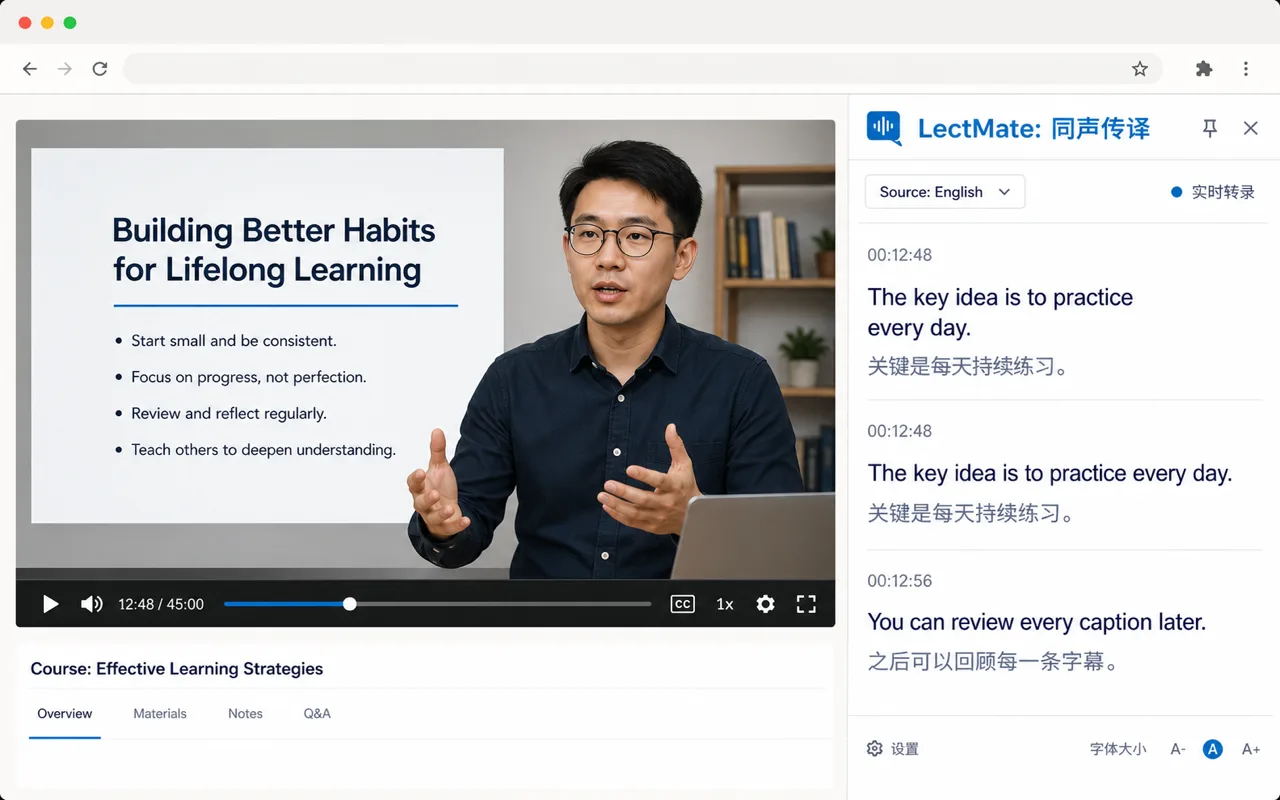
LectMate side panel showing a live English caption and Chinese translation alongside a browser class

02

Read the original and the translation together.

Translation is more useful when it has evidence. The LectMate Chrome extension keeps the spoken source and translated text together in time order, so a specialised phrase, a lecturer’s qualification, or a fast follow-up question has context. When a sentence matters, you can recognise what was said rather than trusting an isolated paraphrase.

A browser lecture with LectMate side-panel captions shown in English and Chinese

03

Turn a live moment into study material.

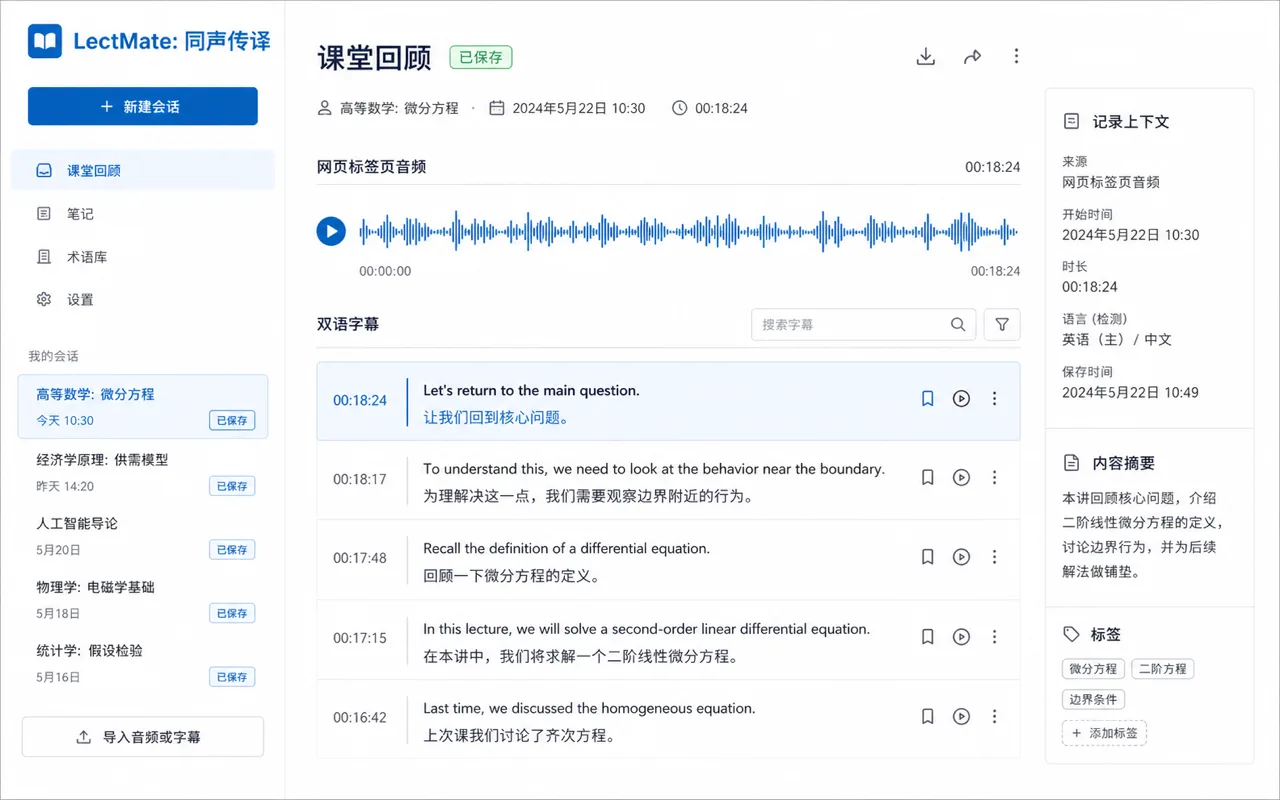
After you stop, the session belongs with your other LectMate study work. Captions, translation, and the tab audio you chose to save can be revisited from the workspace, where they connect to search, replay, summaries, and bilingual notes. The Chrome extension helps with the class now; the workspace makes the class useful again later.

LectMate workspace review screen with saved audio, bilingual captions, and lecture context

How the Chrome extension works

Three deliberate steps. Nothing starts in the background.

  1. 01

    Choose the browser tab

    Open the Zoom web class or other browser page you want to follow, then start the Chrome extension from its toolbar button. LectMate asks you to choose one current tab; it does not listen to your microphone, other tabs, or desktop applications.

  2. 02

    Read live captions in the side panel

    The selected tab continues to play normally while the Chrome extension shows source captions and translation. You can move to another browser tab to take notes without losing the reading panel, while the chosen source tab remains active.

  3. 03

    Stop, save, and review with context

    Stopping ends capture for that tab. The saved session returns to your LectMate workspace, where you can search a passage, replay the matching moment, and turn the lecture into review notes instead of a pile of disconnected screenshots.

Clear boundaries make a better Chrome extension

You choose what is captured, and you can remove it later.

  • The Chrome extension captures only the single browser tab you actively choose. It does not capture desktop Zoom, a separate desktop app, your microphone, or every open tab.
  • A connection to LectMate uses a restricted, revocable extension connection. The extension never receives your LectMate password or copies your website session.
  • Saved captions, translations, and selected tab audio remain in your LectMate account until you delete the session. You can also revoke the connected extension in security settings.
  • You are responsible for having the right to capture and process the class, meeting, or media you choose. The Chrome extension makes consent visible before a session begins.

Questions students ask before class

A Chrome extension with honest answers.

Does the Chrome extension work with Zoom?

It works with Zoom in a browser tab when Chrome can capture that tab’s audio. Zoom’s desktop application is outside the Chrome extension’s capture scope. The same rule applies to other web-based class and meeting pages: LectMate supports the browser tab you choose, not a platform name alone.

Will people still hear the lecture?

Yes. The Chrome extension is designed to keep the selected tab’s normal audio playing while it creates the live caption stream. If Chrome cannot capture the tab or the page has no accessible audio, the extension shows a clear state instead of pretending a session has started.

Do I need to sign in again?

You connect the Chrome extension to an existing LectMate account once through a short approval flow. That gives the extension a restricted connection for captions and saved sessions; it does not expose your password or browser cookie to the extension.

Where do captions go after class?

The Chrome extension sends the finished session back to the LectMate workspace. There you can review the bilingual transcript, use search and replay, create study notes, or delete the session when you no longer need it.

Let the lecture keep its momentum.

Use the LectMate Chrome extension for the browser classes you choose, then return to the workspace with a record that still knows what the lecturer meant.

Go to the workspace