Live lecture transcription
Follow a class with LectMate live lecture transcription, course vocabulary, pause controls, saved history, and a clear path from spoken audio to review.
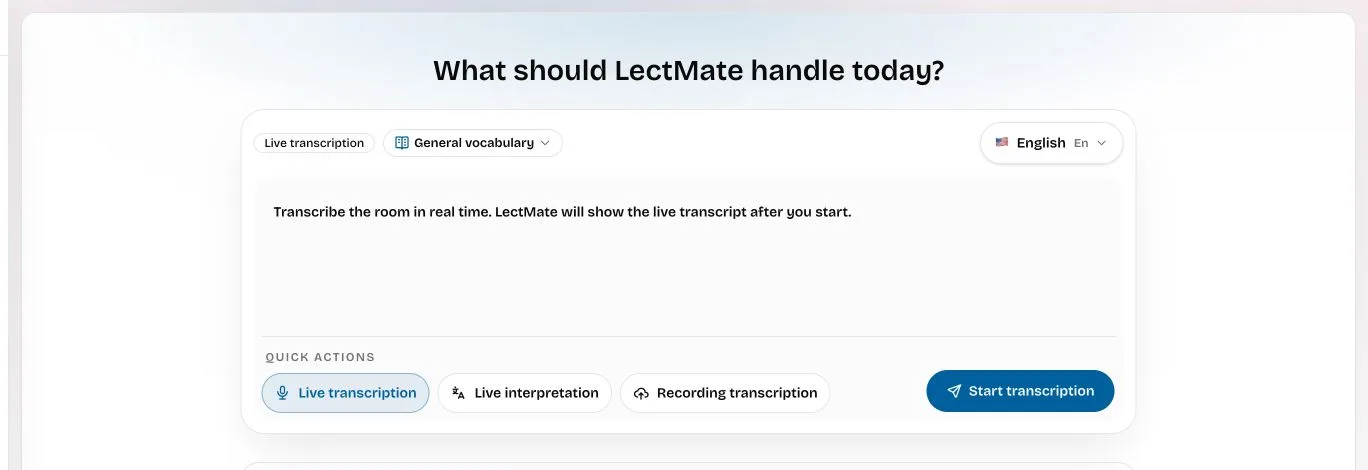
Live lecture transcription turns speech from your microphone into text while a class is happening. In LectMate, you choose the source language and course vocabulary before you begin, watch the lecture transcript develop in the workspace, pause when the room takes a break, and stop when the class ends. The finished session stays in your history for a more careful review.
At a glance: use live lecture transcription when you can hear the class through the room or your own device microphone and need readable support now. Use recording transcription when you already have an audio or video file. Use the Chrome extension when the sound comes from a browser tab that you explicitly choose.
The problem: listening, decoding, and note-taking compete
A fast lecture rarely gives you time to recover. The lecturer introduces a term, adds an example, and moves to the next claim before you have finished spelling the first word. An unfamiliar accent or noisy room adds another layer. If the class is in a second language, part of your attention is also spent translating sentence structure in your head.
Typing every line is not a good solution. It pulls your eyes away from the speaker and often leaves you with fragments instead of an argument. A generic dictation tool can capture words, but it may not understand why a course acronym, researcher name, or technical phrase matters. Live lecture transcription is most useful when it remains connected to the class context and the later study workflow.
How LectMate live lecture transcription helps
LectMate treats the live transcript as the beginning of a study record, not as a disposable caption window. The workspace keeps the main setup decisions together: the live transcription mode, source language, course vocabulary, task description, and the button that starts the session.
| Student difficulty | LectMate action | Practical result |
|---|---|---|
| The lecturer speaks faster than you can type | Shows incoming speech as live text | You can glance at a missed phrase without abandoning the lecture |
| Course terms are easily misheard | Applies the selected course vocabulary and your task context | Important spellings have more context than in a blank dictation box |
| A break creates unwanted text | Lets you pause and resume the active session | The transcript follows the actual class schedule |
| Notes are scattered after class | Saves the completed session in LectMate history | The lecture text and study outputs remain connected |
Live lecture transcription still needs judgment. Use it to recover wording, follow structure, and mark questions. Do not let a screen of text replace the lecturer, slides, assigned reading, or your own notes.
Before class: prepare the input
1. Confirm permission and microphone access
Ask whether recording or transcription is allowed under the lecturer's, school's, meeting's, and local rules. Then open the LectMate workspace in a modern browser and allow microphone access for this session. Place the device where speech is audible without blocking other students or creating feedback.
If the audio is playing only inside a Zoom, Teams, Meet, course portal, or video tab, the normal workspace microphone may not be the cleanest source. The LectMate Chrome extension is designed for a browser tab you actively select; it does not turn the web workspace into a system-wide desktop audio recorder.
2. Choose the source language
Select the language the lecturer will actually speak. Do this before live lecture transcription begins. A lecture can contain quotations or occasional code-switching, but the source setting should match the main spoken language. The language list visible in the current workspace is the reliable list of available choices.
3. Add course context
Choose a relevant vocabulary preset and use the task field to describe the class. A useful note is short and concrete: “microeconomics lecture on supply shocks” is better than “take good notes.” Include abbreviations, preferred spellings, or names that the lecturer is likely to repeat. Context cannot guarantee a perfect transcript, but it gives the live lecture transcription workflow information that a blank speech-to-text session lacks.
A one-minute pre-class check
Open the sender before the lecturer begins and confirm five visible details: Live transcription is selected, the source language is correct, the course vocabulary matches the subject, the task description names today's topic, and the browser shows microphone permission. Then say one ordinary sentence at a normal distance from the device. If no text appears after starting, fix the microphone input before the lecture gets busy. If the words appear but the room is very faint, move the device closer within the rules of the class. This short check makes live lecture transcription far more useful than discovering an input problem after the first important definition.
During class: use the transcript without chasing it
Select Live transcription, review the language and context, and press Start transcription. Speak a short test phrase or listen for the first sentence before assuming the connection is ready. LectMate shows the live transcript in the active session so you can confirm that the microphone is hearing the intended room.
Read selectively. If you understood the sentence, keep looking at the lecturer. If you missed a term, glance at the newest line and return to the class. This “listen first, verify second” habit prevents live lecture transcription from becoming another source of distraction.
Use pause when the class stops for a break or private discussion, then resume when teaching continues. At the end, stop the session deliberately and wait for LectMate to finish saving it. Do not close the tab in the middle of processing unless the interface confirms the session is complete.
After class: turn captions into a review path
The saved session gives you a place to revisit the lecture rather than relying on a pile of screenshots. Start with the course summary and study notes when they are available, then return to the transcript for the lecturer's exact phrasing. Keywords can help you identify the ideas that deserve a second look.
If an audio track was saved for the session in your supported browser, the timeline can take you back to the relevant moment. A productive review sequence is simple: read the summary, choose two difficult ideas, compare each note with the transcript, and replay only the section you need. Live lecture transcription becomes valuable when it shortens that path from “I missed it” to “I can explain it.”
Keep your own interpretation separate from the generated text. A transcript records language; it does not decide whether an argument is correct or whether a quotation is suitable for an assignment. Check names, numbers, formulas, citations, and assessment instructions against the lecturer's original materials.
Live microphone or browser-tab captions?
Use the web workspace for an in-person lecture, tutorial, interview, or discussion that your microphone can hear. It is also suitable when you are speaking directly into the computer. Use the Chrome extension when the lecture sound is coming from a supported web page and you want to capture only the tab you choose.
Neither route automatically captures every desktop application. In particular, a Chrome tab workflow is not the same as capturing a Zoom desktop client. If you already have a permitted file after class, recorded lecture transcription is the clearer option. If the primary difficulty is language rather than hearing the source words, use real-time lecture translation to keep original and translated captions together.
Accuracy, privacy, and responsible use
Room acoustics, microphone distance, overlapping speakers, pronunciation, and specialist vocabulary all affect speech recognition. Treat uncertain names, dates, equations, medical terms, legal language, financial figures, and graded instructions as items to verify. LectMate is a study aid, not an authority that replaces the lecturer or an official transcript.
Only process a class when you have the right to do so. Avoid capturing private conversations during breaks, and stop the session when transcription is no longer needed. Review the privacy policy for how the service handles data and the terms for your responsibilities. Delete sessions you no longer need from your account.
Frequently asked questions
Is live lecture transcription the same as recording a class?
No. Live lecture transcription displays speech as text while the class happens. The browser may also save audio for later playback when that capability is available, but permission requirements still apply. Recording transcription begins with an audio or video file you already possess.
Can LectMate transcribe a Zoom desktop class directly?
The normal workspace listens through the selected microphone. The Chrome extension works with a browser tab you explicitly choose. It does not capture a Zoom desktop client as if it were a web tab.
Should I type notes while live transcription is running?
Yes, but focus on your own questions, connections, and decisions instead of copying every sentence. Let the live transcript support wording while your notes capture what the material means to you.
What should I do when a technical term looks wrong?
Mark the moment, keep listening, and verify it after class against slides, readings, or the saved audio when available. Add recurring spellings or abbreviations to the course context before the next session.
Does live lecture transcription replace accessibility services?
No. It can provide useful reading support, but it is not a guaranteed accommodation or a human captioning service. Follow your institution's accessibility process when formal support is required.
Start with the next class
Open the LectMate workspace, choose Live transcription, set the source language, and write one line of course context. The current usage rate is shown before you start, and the pricing page explains the available credit options. If you need two languages at once, continue with the real-time lecture translation guide.