Real-time lecture translation
Use LectMate real-time lecture translation to read original and translated captions together, choose course vocabulary, and optionally hear interpreter audio.
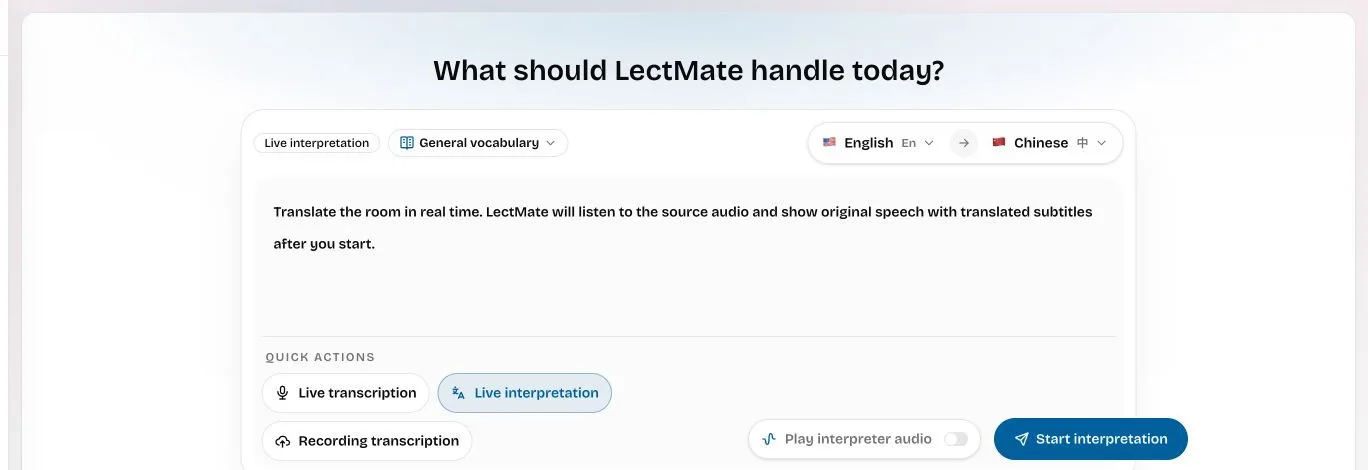
Real-time lecture translation listens to the selected source language and keeps the original transcript beside translated captions while the class continues. In LectMate, this workspace mode is called Live interpretation. You can set the language direction, add course vocabulary, read both versions, and choose whether to play interpreter audio. The completed session is saved for later comparison.
What “live interpretation” means here: LectMate provides machine-generated original captions, translated captions, and optional translated audio for study support. It is not a human interpreter channel and should not replace professional interpretation where safety, legal rights, medical care, assessment, or public commitments depend on exact meaning.
The problem: a translation without the original is hard to trust
Following a second-language lecture is not only a vocabulary test. A lecturer may define a term in one sentence, qualify it in the next, then refer back to it ten minutes later. If you stop to translate every phrase, the class moves on. If you read only a translated sentence, you can lose the original wording that explains a technical term, joke, quotation, or point of uncertainty.
Switching among a meeting window, a translation app, and a notes document also breaks attention. The translated text arrives in a different place from the lecture, while names and abbreviations have no course context. Real-time lecture translation works better when the source and target stay together and the same session remains available after class.
How LectMate keeps the two-language path connected
The LectMate workspace puts the source language, target language, course vocabulary, task context, caption mode, and interpreter-audio option in one setup. This gives you a clear path from room speech to original text, then to translated text, without hiding the source sentence.
| Listening problem | LectMate response | Why it helps |
|---|---|---|
| The lecturer speaks before you finish translating | Produces original and translated captions during the session | You can follow the idea without opening a second app |
| A translation makes a term ambiguous | Keeps the source wording visible | You can compare the exact phrase before accepting the translation |
| Course-specific language is inconsistent | Uses the selected vocabulary and task context | Repeated names and preferred terms begin with more relevant context |
| Reading captions is difficult while watching the class | Offers optional interpreter audio | You can choose a listening route while keeping text available for checking |
| The meaning is still unclear after class | Saves the session in history | Original and translated material remain connected for review |
The goal is not to translate the largest possible amount of text. It is to reduce the mental cost of decoding each sentence while preserving enough source evidence to notice when something needs checking.
Before class: choose a clear language direction
1. Confirm that the audio can be processed
Get the required permission before you transcribe, translate, or save a class. Open the LectMate workspace, allow microphone access, and make sure the intended lecturer is audible. For a course playing in a supported browser tab, the LectMate Chrome extension may provide a more direct tab-audio workflow than playing the sound through speakers and listening again through the microphone.
The web workspace does not silently capture every desktop application. A Zoom desktop client is not the same as a Zoom web tab, and the Chrome extension only works with the tab you actively select.
2. Set source and target languages
The source language is what the lecturer speaks; the target language is what you want to read or hear. Check the direction before starting real-time lecture translation. Reversing the two choices can produce confusing results even when both languages are supported.
Use the language choices visible in the current workspace as the source of truth. Do not rely on an old list or a fixed language count. If the lecturer frequently changes languages, choose the main teaching language and expect to verify the code-switched sections more carefully.
3. Supply course vocabulary
Choose a relevant course vocabulary preset and describe the task in one sentence. “Biochemistry seminar on enzyme inhibition” gives more useful context than “translate this.” Add recurring acronyms, proper names, formulas spoken as words, or a preferred translation when they are central to the class.
Context can guide real-time lecture translation, but it cannot make an incorrect glossary entry correct. Keep the list focused and revise it when the lecturer uses a different term.
Run a short bilingual sound check
Before the class becomes dense, start a brief test and confirm four things in the visible output: speech is appearing under the intended source language, the translated caption is in the intended target language, the course term you supplied is spelled as expected, and interpreter audio is either on or off by choice. Stop the test if the room is wrong or the language direction is reversed. If translated audio is enabled, put on headphones and make sure it does not return through the microphone. A thirty-second check prevents real-time lecture translation from quietly producing a full session in the wrong direction.
During class: read for meaning, check the source for precision
Select Live interpretation, review the language path, and press Start interpretation. Wait until the first original line and its translation appear before depending on the session. If the wrong room, microphone, or language is being captured, stop and fix the input rather than letting an unusable transcript grow.
Use the translation to follow the paragraph. Use the original to verify definitions, names, quotations, numbers, and words that will matter in an assignment. This two-step reading pattern is the central benefit of real-time lecture translation: comprehension first, source checking when precision matters.
If you enable interpreter audio, use headphones to avoid translated speech feeding back into the microphone. The audio is optional; students who process text more easily can leave it off. In a quiet seminar, captions may be less disruptive than a second spoken track. In a visually dense demonstration, interpreter audio may let you keep your eyes on the screen.
Pause during breaks or conversations that should not be processed. Resume when teaching restarts. At the end, stop the session and allow the interface to finish saving it before closing the page.
After class: compare instead of accepting blindly
Begin with the generated summary and study notes when they are available. Then return to the paired transcript for the concepts you found difficult. Read the translated passage, look at the original sentence, and check the lecturer's slides or assigned reading. This is especially important when one source term can have several target-language equivalents.
If a saved audio track is available in your browser, use the session timeline to return to the relevant moment. Replaying a short section while reading both versions is more efficient than listening to the full lecture again. Keywords can help identify themes, but they do not replace the lecturer's official outline.
Real-time lecture translation is most valuable when it creates a review trail: spoken source, readable source caption, translated caption, study note, and verified course material. Keep your own conclusions distinct from machine-generated text.
When captions are enough—and when professional help is required
Live bilingual captions are well suited to lectures, tutorials, research talks, supervisor meetings, and academic discussions where the goal is personal comprehension. Optional interpreter audio can reduce screen-reading during a demonstration, but it remains machine-generated.
Use qualified human interpretation when a mistake could change medical treatment, legal consent, immigration status, financial decisions, disciplinary proceedings, formal assessment access, or a public commitment. LectMate should not be presented to other participants as a certified interpreter. It supports the student's understanding; it does not assume professional responsibility for the conversation.
Accuracy, privacy, and respectful use
Translation quality depends on the speech recognition that comes first. Noise, distance, overlapping speakers, accents, specialist vocabulary, and an incorrect source language can all affect the source text and therefore the translation. Verify names, dates, formulas, quotations, safety instructions, and graded requirements against original materials.
Only process audio when you have permission. Pause for private discussion and delete sessions that no longer serve a study purpose. Read the privacy policy and terms before using the service with sensitive material. For current credit rates, check the workspace before starting or visit pricing.
Frequently asked questions
Is live interpretation the same as human simultaneous interpretation?
No. LectMate provides machine-generated original captions, translated captions, and optional translated audio. A human interpreter can consider intent, stakes, participants, and cultural context in ways a study tool cannot guarantee.
Can I see the original language as well as the translation?
Yes. Keeping the source visible is a core part of the workflow. Use it to verify terminology and any sentence where the translated meaning seems incomplete or surprising.
Do I have to play interpreter audio?
No. The workspace provides a switch, so you can use text only or enable translated audio. Headphones help prevent feedback if audio is enabled.
What if the lecturer speaks two languages?
Choose the main source language and review code-switched passages carefully. The selected source language should match most of the class rather than every isolated quotation.
Can I translate a recording after class instead?
Yes. If you already have a permitted file, recorded lecture transcription includes an optional bilingual workflow. Use live interpretation when support is needed during the class itself.
Follow the next lecture in two languages
Open the LectMate workspace, choose Live interpretation, set the source and target languages, and add one line of course context. If you need source-language captions without translation, use live lecture transcription. Check the current rate in the workspace before you begin.